
Introduction
jDownloads uses Google translate to show the documentation in any of 57 languages. Activating the required translation is very simple.
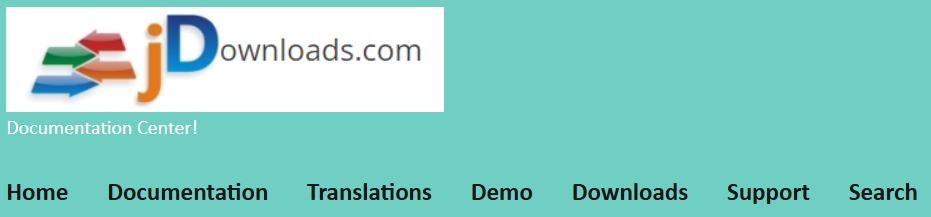
The top part of the jDownloads documentation main page is shown opposite.
Click on
 .
.
Select Language
This opens up the list of languages as indicated opposite
In this example we use the French language.
So click on
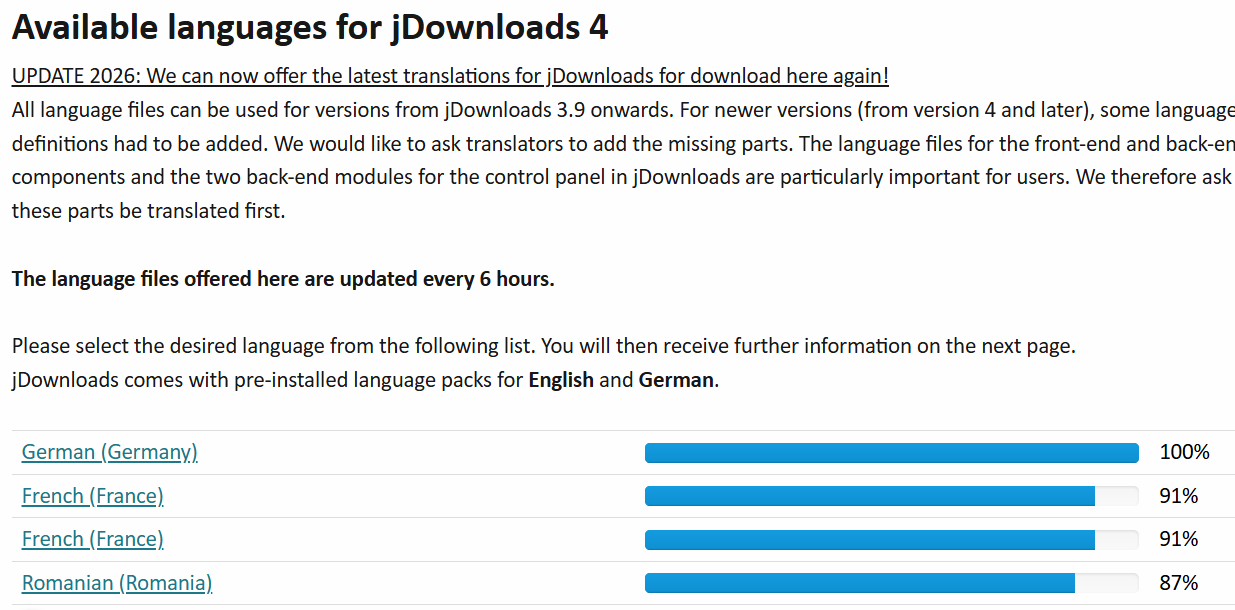
After choosing the language from the Select Language pulldown, there is a short delay and then the screen changes to the language selected for downloading as illustrated opposite. So click on the
 button. This then uses the usal downloading scheme.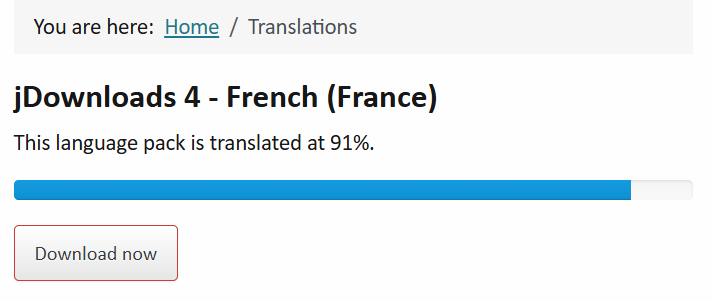
Near the top right of the screen is the Download symbol  . So click on it to show the recent download history. Next click on the title
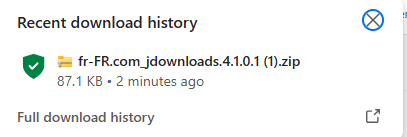
. So click on it to show the recent download history. Next click on the titleThe French language is now available
The "index" is also shown in the choosen language.
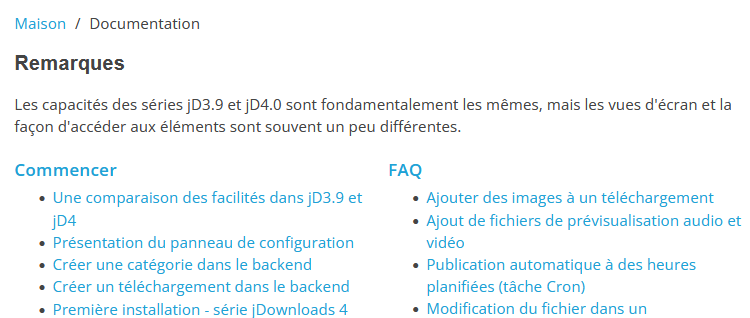
Simarly the text of each article is also translated, but of course the images remain unchanged.

If you have selected a translation then at the top of the page you will see some "translation controls" as illustrated opposite.
By clicking on the
 pull down arrow head you can change the language.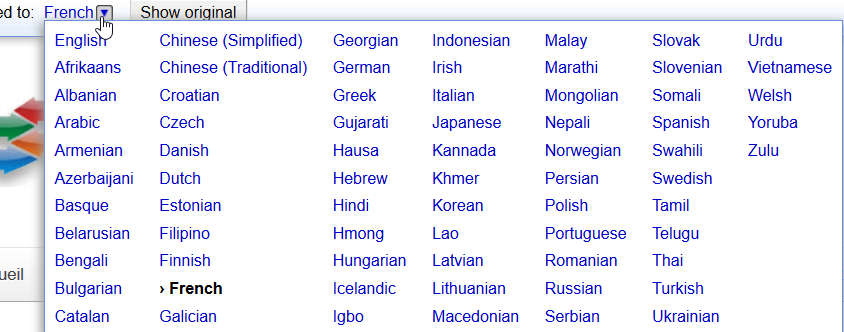
Switch Back to English
Usefully one can click on the  button to look at the original English in case there is some uncertainty about the translation.
button to look at the original English in case there is some uncertainty about the translation.And then switch back to the translated version. by clicking on the language button which is  in this example.
in this example.ColinM November 2019, updated May 2022, July 2023, May2025, July 2026-AA
