
Introduction
The jDownloads admin stats module may be viewed in either the Joomla! Control panel or in the jDownloads Control Panel. The default is to show on the jDownloads Control Panel. To view the the Statistic click on  then on
 . Finally click on
  .
.
then on. Finally click on .The module has a panel of selectable tabs, as illustrated opposite, that will show statistical information about the Downloads and other tabs that provide simple access to various logs.
There is also a tab which shows some related web server php settings information important for jDownloads. Clicking on a tab shows the relevant information immediately below the set of tabs.
Various examples of the information shown are given later in this article.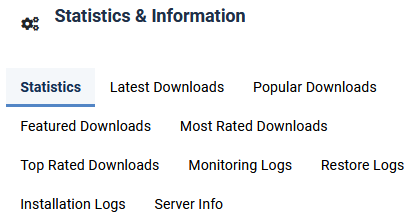
There is also a tab which shows some related web server php settings information important for jDownloads. Clicking on a tab shows the relevant information immediately below the set of tabs.
Various examples of the information shown are given later in this article.
Statistics Tab
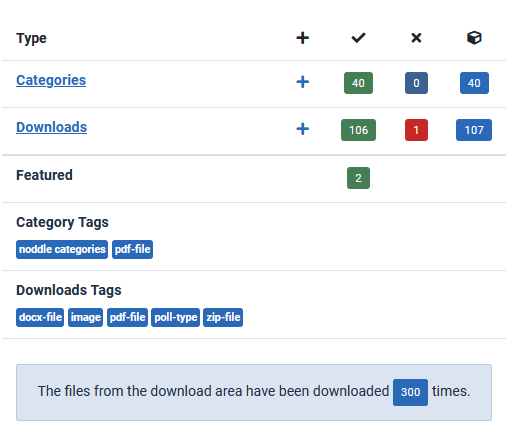
The statistics tab gives details of:
(1) how many categories are published, how many unpublished, and the total number;
(2) how many Downloads are published, how many unpublished, and the total number;
(3) how many Downloads are featured;
(4) the Category Tags in use;
(5) the Downloads Tags in use;
(6) total number of times files have been downloaded.
(1) how many categories are published, how many unpublished, and the total number;
(2) how many Downloads are published, how many unpublished, and the total number;
(3) how many Downloads are featured;
(4) the Category Tags in use;
(5) the Downloads Tags in use;
(6) total number of times files have been downloaded.
Downloads Information
Latest, Popular and Featured Downloads
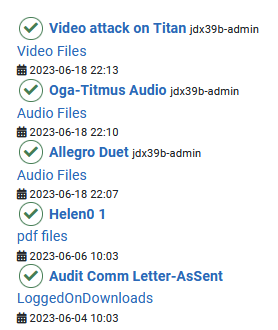
The three views below are quite similar as they show the Download Title, its Category and creation date.
The Latest view shows those Downloads that were recently created with the most recently created appearing highest in the listing. It also shows if the Download is Published.
 The Popular view shows those Downloads that have been downloaded the most times.
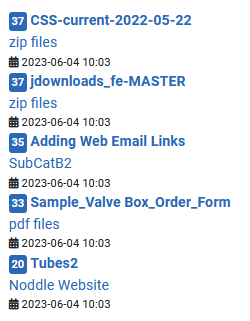 And the Featured view lists those Downloads that have been marked as Featured
 . The Downloads are organised by date with most recent first.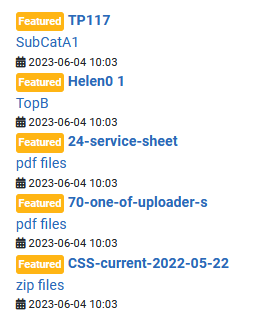
The Popular view shows those Downloads that have been downloaded the most times.And the Featured view lists those Downloads that have been marked as Featured. The Downloads are organised by date with most recent first.Top Rated and Most Rated
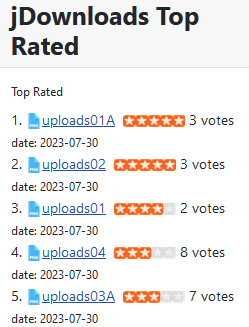
The Top Rated is based on the average rating star value whilst the Most Rated is based on the number of users who have given a rating.
For example
 has been rated by 20 different users with an average rating of 3.5.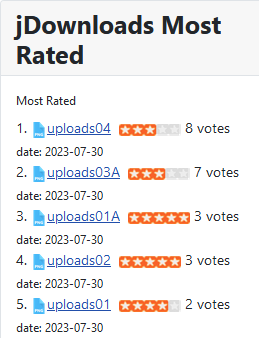
Logging Details
The logging statistics below are separate from the logging of Downloads used in conjunction with User Groups limit settings.
The Limits logging is accessible through the Logs item in the main control panel left hand side menu
See the DOCUMENTATION for details on setting up Limits.
The Limits logging is accessible through the Logs item in the main control panel left hand side menu
See the DOCUMENTATION for details on setting up Limits.
Monitoring Log
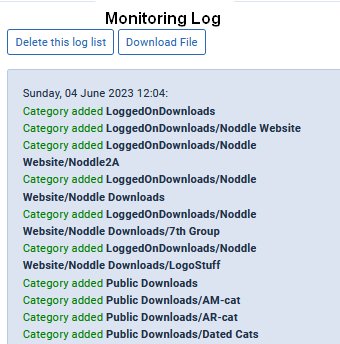
Describes details about file and folder monitoring to form Categories and Downloads. This log shows the results of using the Check Download Area on the jD Control panel.
It records both test runs and data runs.
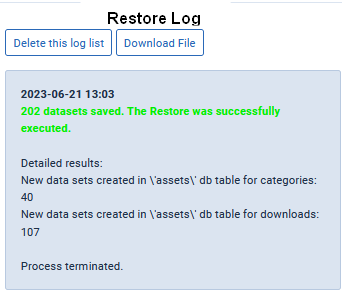
Restore Log
Information relating to use of the Restore tool when restoring the JDownloads database Backup.
As well as resoring the database entries it also updates the Joomla! Assets table.
Installation Log
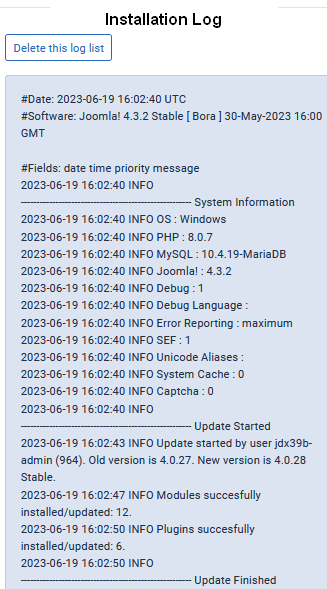
Each time jDownloads is installed or updated then the installation log saves details about:
- the Joomla! platform;
- various items of system information such as PHP and Joomla! versions;
- the jDownloads install or update details.
This information is helpful in diagnosing certain problems.
Server PHP Information
This tab shows information about PHP settings that are relevant to jDownloads.
Allowing file uploads and setting the maximum size of an upload are of obvious importance.
Note that there is a setting in User Groups Settings that also allows setting limits for each User Group.
The maximum upload size then becomes the lowest of all the sizes.
Also it is very desirable that the Memory Limit is larger than the max_filesize and post_max_filesize settings.
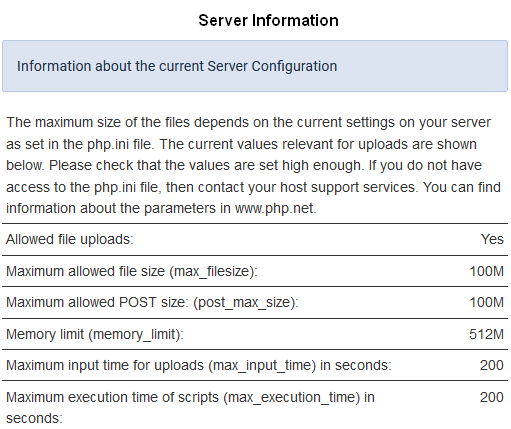
The other two parameters that are significant are the time and duration. These becomes specifically important when using either the jDownloads Monitoring functions or the Files tab operations to create a significant number of Categories and Downloads. Each item requires making multiple database entries, and even more time is required if processing images.
Special Inspections
jDownloads makes some special checks for items which may affect the smooth operation of jDownloads. These are activated by the Admin Stats module each time you call up the Control Panel. These checks include the following items.
No menu item
This is in effect a fatal error as jDownloads requires the List All Categories' menu item for the frontend to work properly.

It is essential to choose 'List all Categories'. It may be a hidden menu. See Menus -Overview and Details (opens in a new window/tab) for more information on making a menu item hidden.
System Plugin problem
This is also technically a fatal error but once detected jDownloads enables the sytem plugin for you.
Overrides check
If you scroll down the Control Panel you may see a message such as that shown opposite that flags up the possibility that some jDownloads component and/or module overrides exist.
Overrides of interest are those that effectively replace the standard jDownloads code. They are not changed when jDownloads is Updated or uninstalled.
See Creating Overrides using Template Manager (opens in a new window/tab) for more information.
Installation and Configuration
The 'Statistics for Administrators' module is automatically installed as part of installing the jDownloads component.
To change the settings first go to  -
-  -
-  . Using the
  use the
 pull down to select
  . Then click on
 .
.
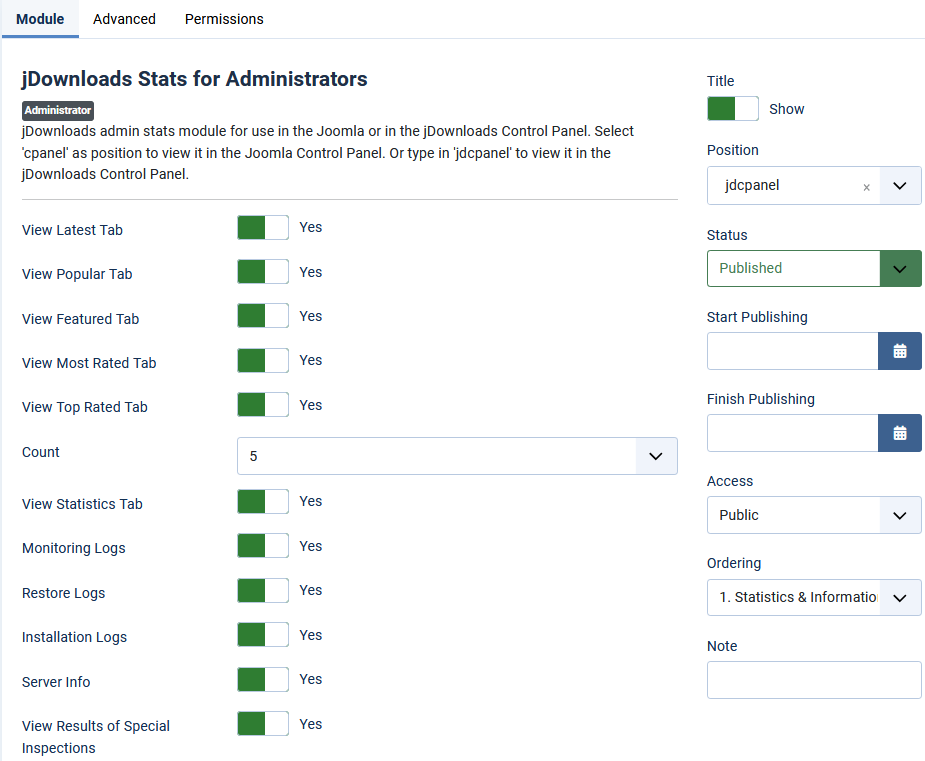
- - . Using the use the pull down to select . Then click on.On the left hand panel you are able to select which 'tabs' are to be shown.
Also in the 'Count' setting you can select how many Downloads are shown.
On the right hand panel you may select where the module is shown.
To show on the jDownloads Control Panel use the pulldown to select position jdcpanel. To show on the main Joomla! Control Panel select cpanel.
If you wish to show on both then make a copy of the module, setting position jdcpanel in one version and cpanel in the other.
The image opposite shows the default settings.
Colin M April 2019, updated October 2020, June 2023, August 2023, May 2025. February 2026


