
Introduction
When viewing Downloads in the backend, the Control bar at the top of the screen
has, on the left side, a panel of 'buttons' like . For Categories the left side
panel is like . Note in both cases
  is inactive.
Both Downloads and Categories have 'buttons' on the righthand side.
has, on the left side, a panel of 'buttons' like
. For Categories the left side panel is like
. Note in both cases is inactive.Both Downloads and Categories have 'buttons'
on the righthand side.The Batch processing option, which is only available in the Backend, was originally just used for moving or copying Categories and Downloads.
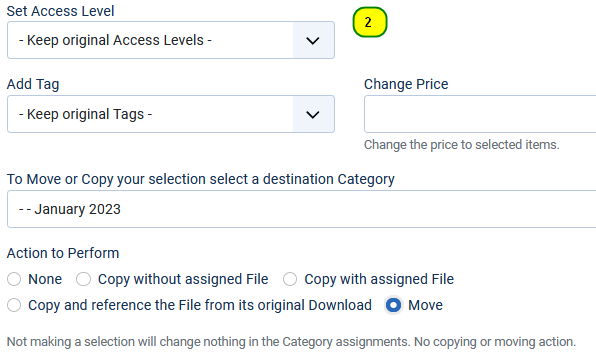
As illustrated opposite it has expanded to do several other useful items like Setting Access levels, and adding Tags to multiple Categories and Downloads. Also in a multilingual site it allows changing the language for the selected categories or Downloads.
Note: the multilingual option only appears when a site is multilingual
These additional changes may be used individually or combined with each other or in conjunction with a move or copy.
Also note that there are three options when copying. This allows making duplicates of a Download in multiple categories.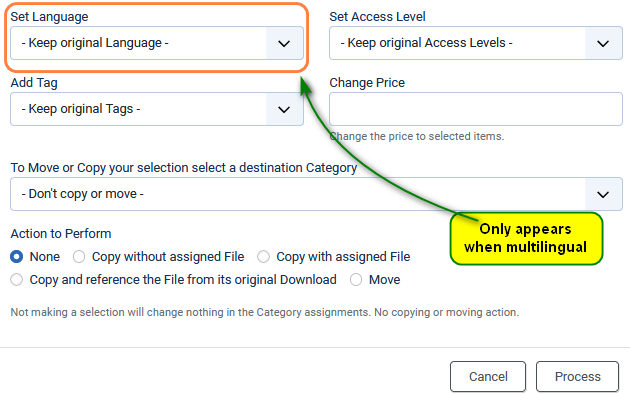
As illustrated opposite it has expanded to do several other useful items like Setting Access levels, and adding Tags to multiple Categories and Downloads. Also in a multilingual site it allows changing the language for the selected categories or Downloads.
Note: the multilingual option only appears when a site is multilingual
These additional changes may be used individually or combined with each other or in conjunction with a move or copy.
Also note that there are three options when copying. This allows making duplicates of a Download in multiple categories.
Selecting the Categories or Downloads
The Selection process for either Categories or Downloads is essentially the same.
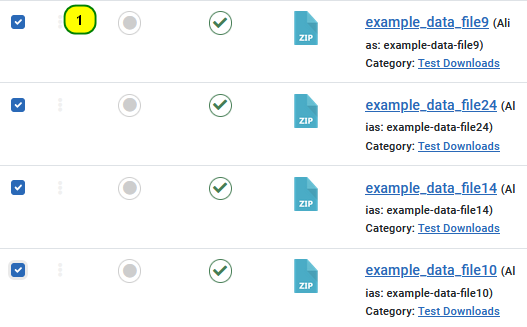
First you just need to tick the selection box of the required items. In the image opposite three downloads have been selected.
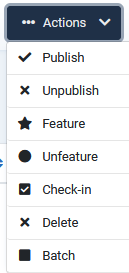
Initially the button is inactive but when one or more items are selected then it becomes active  and various actions are available as listed in the image opposit.
So click on the button in the pulldown list shown in the image opposite.
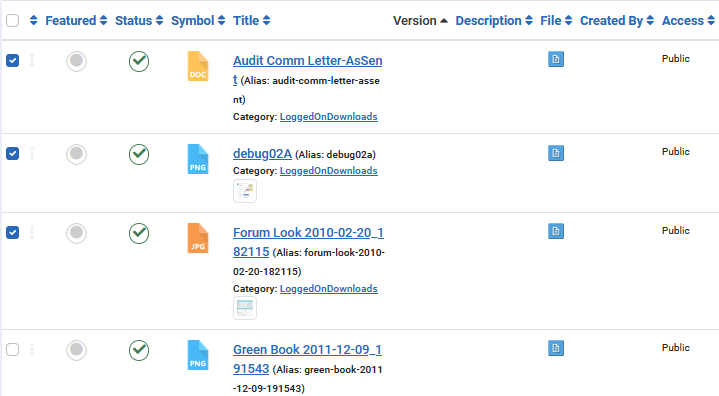
First you just need to tick the selection box of the required items. In the image opposite three downloads have been selected.
Initially the
button is inactive but when one or more items are selected then it becomes active and various actions are available as listed in the image opposit.So click on the
button in the pulldown list shown in the image opposite.Beware that it will only select those that you are on the page you are currently viewing, it does not select those that are on another page.
Unlocking
In order to be safe when moving or copying then ALL other Downloads or Categories, as appropriate, are LOCKED during the process. This is because many of the 'moves' or 'copying' relate to database changes. Having other changes made to the database at the same time would lead to database corruption.
To UNLOCK if the batch processing should fail for an unknown reason then go to the section on the jDownloads Control Panel and select the
  .
.
To UNLOCK if the batch processing should fail for an unknown reason then go to the
section on the jDownloads Control Panel and select the .Changing the Access Level
Basically the Access Level sets what a user in the relevant UserGroup may see in the front end. Unlike permissions, Access levels do not 'cascade', they are set individually for each category and for each Download.
By default jDownloads sets the Access level to Public. That is any user is able to see them whether they are logged in or not.
The 'Set Access Level' is very useful for example when changing a site so that Registered users may see additional Downloads and Categories from those that the Public users can see.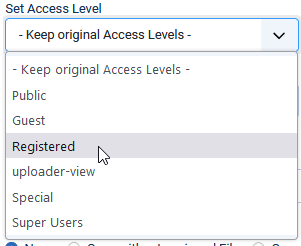
By default jDownloads sets the Access level to Public. That is any user is able to see them whether they are logged in or not.
The 'Set Access Level' is very useful for example when changing a site so that Registered users may see additional Downloads and Categories from those that the Public users can see.
Adding Tags
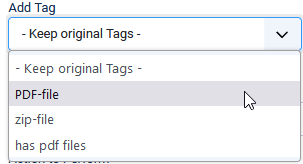
This is quite simple just select an existing tag in the pulldown that you wish to add and then click on the
 button.
The default setting is 'Keep original Tags'.
Changing the Language
This batch facility is very useful if you have a multilingual site.
It is particularly useful when converting a non-multilingual site to a multilingual site
The default setting for 'Set Language' is to keep the original language.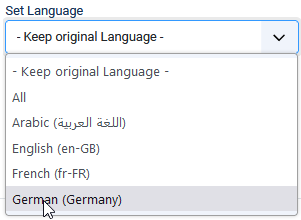
It is particularly useful when converting a non-multilingual site to a multilingual site
The default setting for 'Set Language' is to keep the original language.
Moving Categories or Downloads
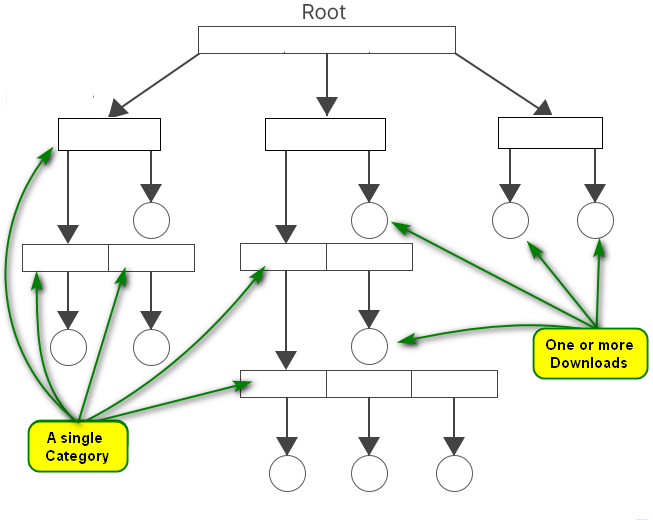
It is useful to recall the strucure of 'categories' and 'Downloads'.
This is illustrated opposite where a rectangle represents just one category and a circle which represents one or more Downloads.
There are three top level categories each with Downloads; four sub-categories of which only three have Downloads, and three sub-sub-categories with Downloads.
This is illustrated opposite where a rectangle represents just one category and a circle which represents one or more Downloads.
There are three top level categories each with Downloads; four sub-categories of which only three have Downloads, and three sub-sub-categories with Downloads.
Moving Categories
When you MOVE a category to another position, then the corresponding folder, all it subfolders and all the Downloads and the files are moved to the new position in the category tree. The use of 'category' here means a category at any level in the entire category tree.
The 'moved' categories will retain their position relative to each other.
Note that if you wish to move the selection such that the most 'senior' category is to become a top level category then select 'Add to root' as the destination.
The 'moved' categories will retain their position relative to each other.
Note that if you wish to move the selection such that the most 'senior' category is to become a top level category then select 'Add to root' as the destination.
In this example we will move sub category 'Dated Cats'. To select click on the field of the relevant category.
The alongside 'Dated Cats' indicates that it has been chosen as the 'source' category.
Presently Dated Cats is a sub category of 'LoggedOnDownloads'.
It has 4 sub categories.
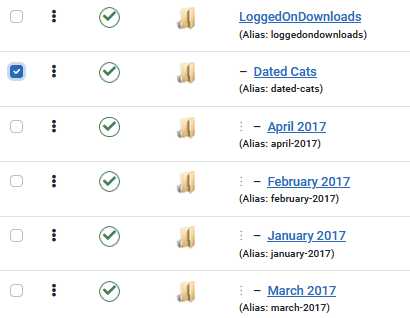
field of the relevant category. The
alongside 'Dated Cats' indicates that it has been chosen as the 'source' category.Presently Dated Cats is a sub category of 'LoggedOnDownloads'.
It has 4 sub categories.
Having selected the 'source' category as above use the pull down to select the 'target' category.
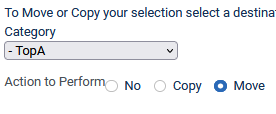
As shown in the first image opposite use the pull down to select the 'target' category, which in this example is 'TopA'.
After clicking on the target category and selecting the 'Move' option the view will be like the image below.
 Next click on the button. The result is shown on the far right where Dated Cats and its sub-categories have been moved.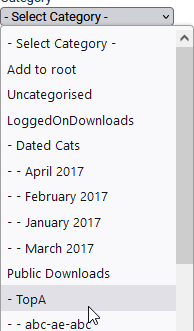
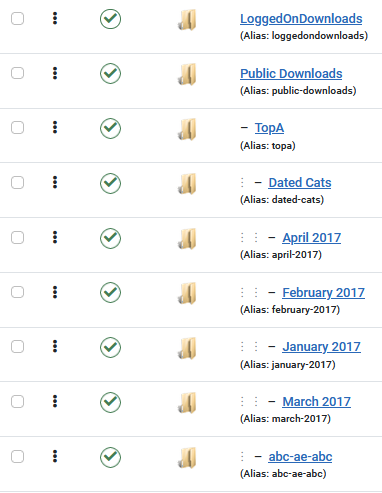
When moving categories the associated downloadable files are also moved. So it is recommended that moderation is used in the number you select.
Moving Downloads
Whilst moving Downloads is essentially a database operation, the downloadable files are also physically moved to the relevant folder. This may take some time if the files are large or you select a large number Downloads. So moderation is recommended, doing a large move in a re-organisation is best done in modest steps.
This example selects moving the Downloads in category 'Public Downloads' as shown in image 1 into another Category called 'April 2017' Using the original as illustrated in the setup 2 below.
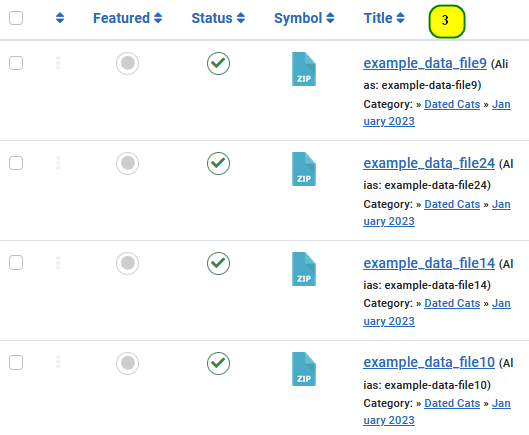
The result is shown in image 3 where the Downloads have been moved.
Copying Categories or Downloads
Copying Categories
When you COPY a category only the category and its sub-categories are duplicated; the Downloads are not duplicated.
Copying Downloads
There are three Copy options:
- Copy without assigned file - this then makes them a simple Downloads without a file, indicated by
 in the listing.
 - Copy with assigned file - this results in a standard Download with a downloadable file, indicated by
 in the listing.
 - Copy with reference file - the copied Download does not have its own downloadable file but refers to the one in the original Download, indicated by
 in the listing.
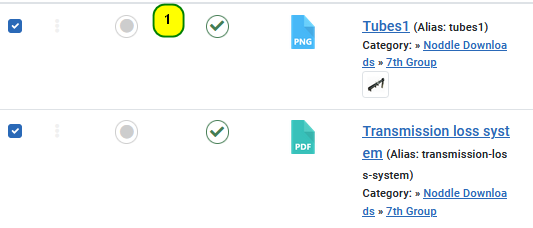
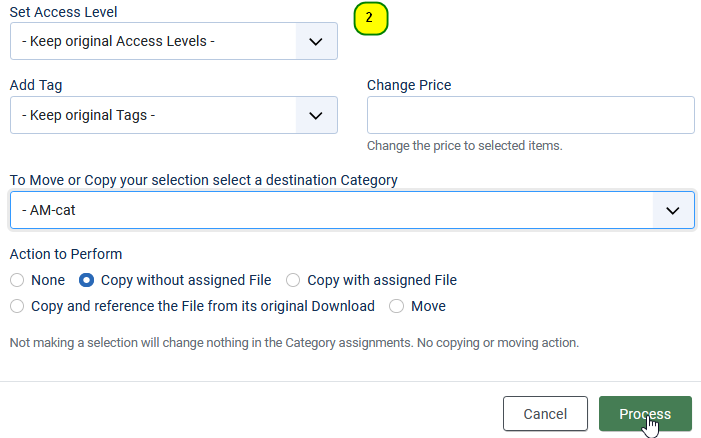
This example illustrates 'Copy without assigned File' of two Downloads in category 'Public Downloads' as shown in image 1 below into another Category called 'AM-cat' as illustrated in the image 2 below.
The result is shown in image 3 where the Downloads have been copied.
The result is shown in image 3 where the Downloads have been copied.
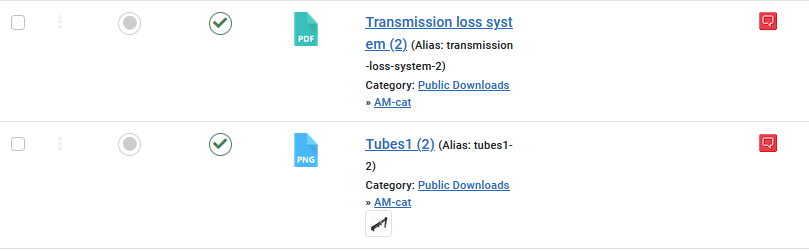
Note that in this example the copied Downloads are now just simple Downloads without a downloadable file, they are shown with a  symbol in the backend listing of Downloads.
The other two copy modes are carried out in the same way but result in either their own downloadable file,, or a referenced downloadable file, .
Clearly if a Download being copied is itself a simple Download then the resultant copy will also be a simple Download.
symbol in the backend listing of Downloads.The other two copy modes are carried out in the same way but result in either their own downloadable file,
, or a referenced downloadable file, .Clearly if a Download being copied is itself a simple Download then the resultant copy will also be a simple Download.
Colin M June 2020, revised April 2023, July 2023, May 2025


