
Introduction
The appearance of the Categories and Downloads in the front end is controlled by a combination of the jDownloads Layouts and the CSS. If you wish to just make some adjustments to an existing Layout note that Layouts maybe edited online within jDownloads as described in the Layouts Section (opens in a new window/tab) of the documentation.
Editing the CSS files requires a good understanding of Cascading Style Sheets.
Presently all the Layouts used in the jDownloads jD3.9 series are are included in the jd4 series . All these layout names end in ' _v3.9'. Additionally Bootstrap 5 Grid layouts have been added. these layouts have names ending in 'v4.1'.
jDownloads provides facilities to export and import Layouts and CSS files.
Editing the CSS files requires a good understanding of Cascading Style Sheets.
Presently all the Layouts used in the jDownloads jD3.9 series are are included in the jd4 series . All these layout names end in ' _v3.9'. Additionally Bootstrap 5 Grid layouts have been added. these layouts have names ending in 'v4.1'.
jDownloads provides facilities to export and import Layouts and CSS files.
- Import and Export of Layouts enable sharing of layouts between users.
- The exported files are an xml file, for example exported_layout_jd_3.9.8_Compact_Files_Layout_v3.9.xml.
- Import and Export of CSS files is to facilitate making changes to the appearance of the items in the layout. The exported files are a css file, for example jdownloads_custom.css.
Editing an exported layout file is not recommended as it is a complex structure and requires a strict form.
The simplest way of editing a CSS file is with a text editor such as Notepad++ on your local PC or similar. To download Notepad++ see https://notepad-plus-plus.org/downloads/ (opens in a new window). The edited CSS file may then be imported.
There are five CSS Files as listed below.
The simplest way of editing a CSS file is with a text editor such as Notepad++ on your local PC or similar. To download Notepad++ see https://notepad-plus-plus.org/downloads/ (opens in a new window). The edited CSS file may then be imported.
There are five CSS Files as listed below.
- jdownloads_fe. css which is the main styling of the front end; - this file is liable to be reset on every jDownloads update
- jdownloads_fe_rtl.css which is used when a RTL language is in use;
- jdownloads_buttons.css which styles the buttons;
- jdownloads_custom.css which is specific to your site and is not changed by jDownloads;
- jdownloads_modules.css which is used with most jDownloads modules.
NOTE: All of the CSS files, except jdownloads_custom.css, are liable to be reset on every jDownloads update.
Just for clarity:
- Import is uploading to your site,
- Export is transferring from your site to your local device, that is downloading.
Accessing Import and Export facilities
To access the import and export facilities go to the  , then click on
  . Next click on
  and then scroll down to
 button and click on it.
This takes you to the Main Layouts Header Bar as shown below. This has Import and Export CSS buttons and an Import Layout button. Note that at this stage there is no Layout Export button!
 Main Layouts Header Bar
Below this is the 'Individual Layout type' bar as shown below. It also gives access to the CSS files.
 If you click on say the Downloads section it will show the list of the Download layouts, a small section of these is shown below.
Also the button in the 'Individual Layout type' bar becomes highligted.
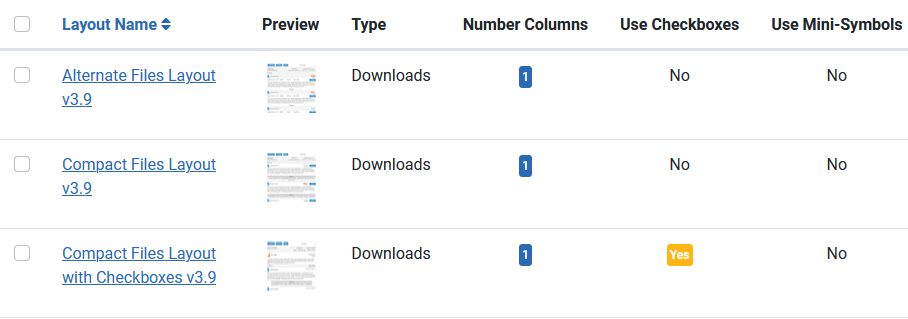 Initially the main control bar at the top shows as below. Note that the Actions and Export Layout buttons are disabled.
 To activate these click on one of the 'boxes' at the left of the layout name
 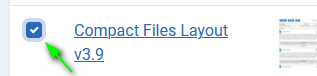 The Actions and Export buttons are now enabled as shown below.

Notes (i)The layout files are exported and imported as '.xml' files because they have multiple sections.
(ii)The css files are exported and imported as type '.css' files.
, then click on . Next click on and then scroll down tobutton and click on it.This takes you to the Main Layouts Header Bar as shown below. This has Import and Export CSS buttons and an Import Layout button. Note that at this stage there is no Layout Export button!
Main Layouts Header BarBelow this is the 'Individual Layout type' bar as shown below. It also gives access to the CSS files.
If you click on say the Downloads section it will show the list of the Download layouts, a small section of these is shown below. Also the
button in the 'Individual Layout type' bar becomes highligted.Initially the main control bar at the top shows as below. Note that the Actions and Export Layout buttons are disabled. To activate these click on one of the 'boxes' at the left of the layout name The Actions and Export buttons are now enabled as shown below.Notes (i)The layout files are exported and imported as '.xml' files because they have multiple sections.
(ii)The css files are exported and imported as type '.css' files.
Export a Layout
In this example we will export the Downloads layout 'Compact Files Layout v3.9'. So select the relevant layout, which in this example is , then click on the  button from the Main Layouts Header Bar.
, then click on the button from the Main Layouts Header Bar. This will bring up a standard 'Download and Save' sequence in your browser. So follow the instruction from your browser to save the file in an appropriately named folder.
The file will have a name such as 'exported_layout_jd_4.0.47 Stable_Compact_Files_Layout_v3.9.xml'. This has the the version of jDownloads from which it was exported and the name of the layout.
The file will have a name such as 'exported_layout_jd_4.0.47 Stable_Compact_Files_Layout_v3.9.xml'. This has the the version of jDownloads from which it was exported and the name of the layout.
Import a Layout
Click on the  button on the Main Layouts Header Bar.
This then shows the Import Layout Panel as illustrated opposite. Use the Browse button to locate the relevant xml file.
Click on the Browse button to find the xml file, and then click on the Import Layout button.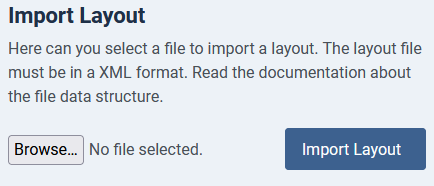
button on the Main Layouts Header Bar.This then shows the Import Layout Panel as illustrated opposite. Use the Browse button to locate the relevant xml file.
Click on the Browse button to find the xml file, and then click on the Import Layout button.
After clicking on the Browse button and locating the relevant xml file the screen would look something like that opposite. So click on the Import Layout button.
Because the xml file contains the type of layout, jDownloads knows into which Layout section the uploaded layout file is to be placed.
NOTE: If you based the imported layout on a existing layout you had previously exported make sure you change the name as otherwise you will have two layouts with the same name.
Checks are made upon the structure and contents of the uploaded xml file to ensure it is a valid layout file.
If all is OK the layout will appear in the relavant Layout section.
NOTE: If you based the imported layout on a existing layout you had previously exported make sure you change the name as otherwise you will have two layouts with the same name.
Checks are made upon the structure and contents of the uploaded xml file to ensure it is a valid layout file.
If all is OK the layout will appear in the relavant Layout section.
Export a CSS file
Clicking on the  button on the header bar Layout Control panel, the Layout Export page will be shown.
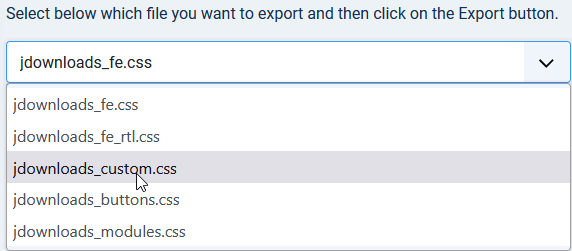
After some explanation about the five CSS files there will be a Select pulldown, as shown opposite' and an button. In this example it is the jdownloads_custom.css file that is selected as illustrated below.
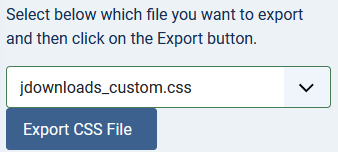
button on the header bar Layout Control panel, the Layout Export page will be shown.After some explanation about the five CSS files there will be a Select pulldown, as shown opposite' and an
button. In this example it is the jdownloads_custom.css file that is selected as illustrated below. Next click on the button next to the button. This will open up a standard download sequence in your browser so that you can save the exported css file to a location of your choice.
In this example the name of the exported file is jdownloads_custom.css
button. This will open up a standard download sequence in your browser so that you can save the exported css file to a location of your choice. In this example the name of the exported file is jdownloads_custom.css
Import a CSS file
Clicking on the  button, which is only available in the Layout Selection Panel, will take you to the import css page.
button, which is only available in the Layout Selection Panel, will take you to the import css page.After some explanation about the five CSS files there will be the import as illustrated opposite. Use the Browse button to select the particular file to upload from your device to your site, then click the  button. Here jdownloads_custom.css has been selected
Note that jDownloads makes several checks on the validity of the selected file.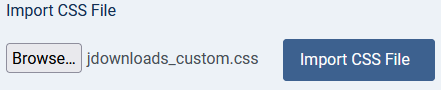
button. Here jdownloads_custom.css has been selectedNote that jDownloads makes several checks on the validity of the selected file.
The image opposite shows a view of the web site files before the import occured.
Note that jDownloads also supports the w3schools (opens in a new tab/window) w3.css file. This is a modern CSS framework with built-in responsiveness. It supports responsive mobile first design by default, and it is smaller and faster than similar CSS frameworks.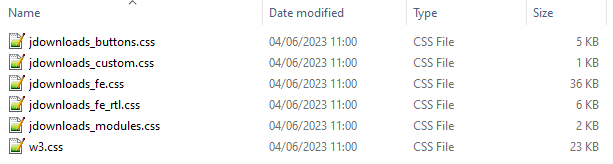
Note that jDownloads also supports the w3schools (opens in a new tab/window) w3.css file. This is a modern CSS framework with built-in responsiveness. It supports responsive mobile first design by default, and it is smaller and faster than similar CSS frameworks.
If the upload is successful then the new file will be in the directory and the previous file will have been renamed.
In this example the renamed file is "jdownloads_custom.css.backup.1"
If another upload of a "jdownloads_custom.css" file occurs then there will another backup file, this time called "jdownloads_custom.css.backup.2".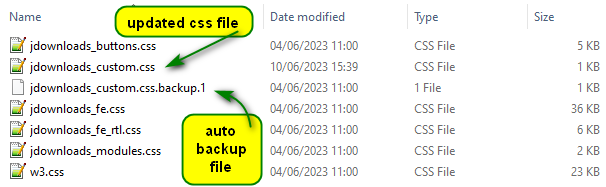
In this example the renamed file is "jdownloads_custom.css.backup.1"
If another upload of a "jdownloads_custom.css" file occurs then there will another backup file, this time called "jdownloads_custom.css.backup.2".
This succesive naming continues. To delete a backup file or rename back to "jdownloads.fe.css" it is necessary to use either a Joomla! file manager, an FTP programme or the website control panel file manager.
If the upload is not successful then an error message is returned and the directory remains unchanged. 
ColinM March 2023, June 2023, May 2025, July 2026
